Colorimetric Gamut Geometry & ICC Profile Transforms
An authoritative color science dissertation dissecting RGB Working Color Spaces inside the CIE 1931 Chromaticity Horseshoe. We compare sRGB (IEC 61966-2-1), Adobe RGB (1998), Display P3, and ProPhoto RGB (ROMM RGB) primaries, D65 vs. D50 White Points, Transfer Gamma Curves (2.2 vs. 1.8), and prove why ProPhoto RGB strictly requires 16-Bit depth to prevent sky posterization.
Consider a simple RGB pixel value: R = 255, G = 0, B = 0. What exact color is that? To an uninitiated user, the answer is simply “100% Pure Red.” In colorimetric physics, however, R = 255, G = 0, B = 0 is a completely meaningless relative number until you attach a Color Space Profile (ICC Profile) that defines the exact physical wavelength coordinates on the CIE 1931 XYZ Chromaticity Diagram corresponding to “Maximum Red”!
Just saying R = 255 without specifying whether the container is sRGB, Adobe RGB (1998), Display P3, or ProPhoto RGB is like a carpenter saying a board is “100 units long” without specifying whether the units are millimeters, inches, or meters! In this comprehensive color management treatise, we examine the geometry of color gamuts, gamma transfer functions, and the critical mathematical relationship between Gamut Volume and Bit Depth.
1. The CIE 1931 Chromaticity Diagram and How RGB Triangles Define Gamuts
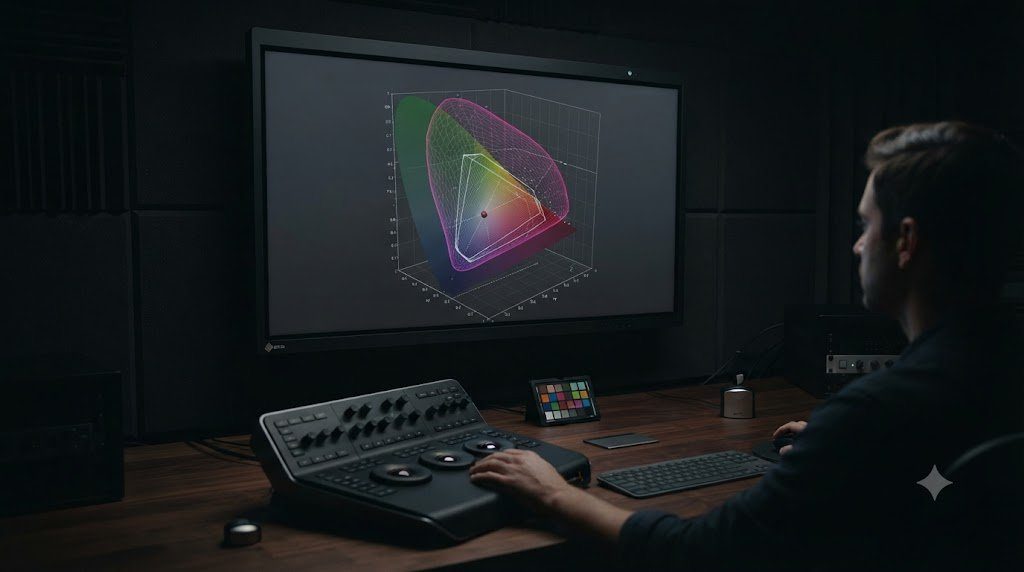
In 1931, the Commission Internationale de l’Éclairage (CIE) mapped every visible wavelength of electromagnetic light that the human eye’s L, M, and S retinal cones can perceive (from 380nm violet to 700nm deep red) onto a two-dimensional horseshoe-shaped coordinate plane known as the CIE 1931 xy Chromaticity Diagram:
- The Curved Outer Perimeter (The Spectral Locus): Represents 100% monochromatic pure laser wavelengths of light.
- The Interior White Point (D65 or D50): Lies near the center of the horseshoe where all wavelengths mix into achromatic neutral white.
- How Any RGB Color Space Works: Every additive RGB color space defines three corner coordinate pins (Primary Chromaticities: Red
[x_R, y_R], Green[x_G, y_G], and Blue[x_B, y_B]) inside the CIE horseshoe and connects them with straight lines to form a Triangle! Every color that can possibly be represented by positive RGB numbers inside that color space lies strictly inside that triangle; any visible color outside the triangle is Out of Gamut (Clipped)!
2. Comparing the Four Major Photographic Color Spaces
Let us compare the exact CIE 1931 gamut coverage, white points, and gamma curves of the four standard color spaces used in digital photography:
- sRGB (IEC 61966-2-1 — Created by HP & Microsoft in 1996):
- CIE 1931 Coverage: Covers only ~35.9% of human-visible colors (White Point:
D65 / 6500K; Effective Gamma:2.2with a linear toe near black). - What It Misses: sRGB’s green primary is pulled heavily inward toward yellow-green, clipping off vibrant tropical ocean cyans, emerald foliage, peacock blues, and deep printer magentas/yellows.
- Why It Still Rules the Web: Because 99% of consumer web browsers, Android/Windows apps, and online print labs assume untagged images are sRGB! Always export final web JPEGs in sRGB.
- CIE 1931 Coverage: Covers only ~35.9% of human-visible colors (White Point:
- Adobe RGB (1998) — The Commercial Print & Wide-Gamut Monitor Standard:
- CIE 1931 Coverage: Covers ~52.1% of visible colors (roughly 35% larger in volume than sRGB; White Point:
D65; Pure Gamma:2.2). - The Green-Cyan Expansion: Adobe RGB shares the exact same Red and Blue primary coordinates as sRGB, but moves its Green primary pin much higher and further left into deep emerald green (
x=0.21, y=0.71)! Why? Specifically so RGB files can encompass the rich cyan and emerald-green ink gamuts of commercial CMYK offset printing presses and 10-color pigment archival inkjet printers!
- CIE 1931 Coverage: Covers ~52.1% of visible colors (roughly 35% larger in volume than sRGB; White Point:
- Display P3 (DCI-P3 with D65 White Point — The Apple / Modern OLED Standard):
- CIE 1931 Coverage: Covers ~45.5% of visible colors (~25% larger than sRGB). Unlike Adobe RGB (which expands into green-cyan for print inks), Display P3 expands further into saturated Red-Orange and Yellow-Green, matching modern OLED smartphones (iPhone/MacBook Liquid Retina XDR) and HDR digital cinema projectors.
- ProPhoto RGB (ROMM RGB — Kodak Reference Output Medium Metric):
- CIE 1931 Coverage: Covers an astonishing ~79.7% of all visible CIE 1931 colors—and over 90%+ of all real-world surface reflectance colors (Pointer’s Gamut)! (White Point:
D50 / 5000K; Gamma:1.8). - Imaginary Primaries Outside the Horseshoe: To avoid clipping any deep blue, violet, or emerald color that a camera sensor can record, Kodak placed two of ProPhoto RGB’s corner pins (Green and Blue) completely outside the CIE 1931 human vision horseshoe in “Imaginary Color” space! Approximately 13% of ProPhoto RGB’s triangle consists of mathematical coordinates that do not even correspond to physical light wavelengths—guaranteeing that Adobe Lightroom (which uses linear Melissa/ProPhoto RGB internally for all Develop module processing) never clips a single captured sensor color!
- CIE 1931 Coverage: Covers an astonishing ~79.7% of all visible CIE 1931 colors—and over 90%+ of all real-world surface reflectance colors (Pointer’s Gamut)! (White Point:
3. Photographic Color Space Gamut & Specification Matrix
The comparative CIE 1931 gamut area coverage, Pointer’s Real-World Surface Gamut coverage, white point, gamma transfer curve, and required bit depth across the four color spaces are detailed below:
| Color Space Profile | CIE 1931 Area (%) | Pointer’s Surface Gamut | White Point | Tone Response Gamma | Safe Bit Depth | Optimal Photographic Workflow Stage |
|---|---|---|---|---|---|---|
| sRGB (IEC 61966-2-1) | 35.9% | ~69% | D65 (6500K) | 2.2 (Piecewise) | 8-Bit or 16-Bit | Web delivery, social media, consumer kiosks |
| Display P3 (Apple / Web HDR) | 45.5% | ~85% | D65 (6500K) | 2.2 (sRGB Transfer) | 8-Bit / 10-Bit HEIF | Modern OLED phones, tablets, HDR web portfolios |
| Adobe RGB (1998) | 52.1% | ~86% | D65 (6500K) | 2.2 (Pure Power) | 16-Bit Recommended | Hardware-calibrated monitors, CMYK press, fine-art print |
| ProPhoto RGB (ROMM RGB) | 79.7% | ~99.9% | D50 (5000K) | 1.8 (Piecewise) | 16-Bit MANDATORY! | Master RAW conversion & 16-bit Photoshop retouching |
4. The Bit-Depth vs. Gamut Size Trap: Why 8-Bit ProPhoto RGB Causes Severe Banding!
If ProPhoto RGB covers 79.7% of the CIE 1931 color chart and encompasses virtually 100% of all real-world surface colors, why shouldn’t every photographer set their camera and Photoshop working space to 8-Bit ProPhoto RGB for everything? Because of a fundamental mathematical law of quantization: Bit Depth defines the NUMBER of stair-steps available, while Color Gamut Volume defines the TOTAL DISTANCE those stair-steps must span!
Imagine building a staircase from the ground floor to the roof using a fixed budget of only 256 wooden steps (8-Bit = 2^8 = 256 levels per channel):
- 8-Bit sRGB (Small Gamut Volume ÷ 256 Steps): Because the distance from neutral gray to full sRGB saturation is relatively short, dividing that compact gamut into 256 steps per channel keeps each individual step tiny (roughly
ΔE < 1.0, near the human eye’s Just Noticeable Difference threshold). Smooth blue skies and studio gradients look mostly continuous. - 8-Bit ProPhoto RGB (Massive Gamut Volume ÷ 256 Steps = Disaster!): Now stretch those exact same 256 steps across a color space that is more than 2.2x wider in chromaticity area (and reaches out into imaginary colors!)! Because the corner pins of ProPhoto RGB are so far apart, the physical gap (
ΔE) between integer step140and integer step141becomes more than twice as wide! The moment you apply even a mild S-curve or gradient mask to an 8-bit ProPhoto RGB (or 8-bit Adobe RGB) file, smooth blue skies and skin shadows fracture into ugly, visible Posterization / Contour Banding! - Why 16-Bit Depth (65,536 Steps per Channel) Solves Everything: When you operate in 16-Bit mode (Photoshop’s 15-bit+1 internal representation =
32,769 to 65,536 discrete steps per channel), you have 256 times finer graduation steps than 8-bit! Even across the enormous expanse of ProPhoto RGB, each 16-bit step is microscopic—allowing aggressive curves, levels, and color grading with zero banding!
Cardinal Rule of Color Management: Never use ProPhoto RGB in 8-Bit mode! ProPhoto RGB = 16-Bit Only; 8-Bit Exports = sRGB (or Display P3).
5. Gamma Curves and Perceptual Uniformity: Linear 1.0 vs. Gamma 1.8 vs. Gamma 2.2
In addition to defining the three primary corner coordinates and the White Point (D65 or D50), every ICC Color Space profile defines a Tone Response Curve (TRC) or Gamma Transfer Function (V_out = V_in^γ). Why do display and editing color spaces apply a non-linear Gamma curve of 1.8 (ProPhoto RGB) or 2.2 (sRGB and Adobe RGB) instead of leaving numbers in Linear Gamma 1.0 like the camera sensor?
- Weber-Fechner Law of Human Vision: As we explored in our Exposure and Zone System chapters, the human visual cortex perceives brightness logarithmically! Our eyes are hyper-sensitive to tiny luminance differences between dark shadow tones, and relatively insensitive to identical photon differences in bright highlights.
- Preventing Shadow Starvation in 8-Bit and 16-Bit Containers: In a Linear Gamma 1.0 file, half of all code values (50% of the entire bit depth!) are spent on the brightest 1.0 EV stop of highlights, while the deepest shadows receive only a handful of integers. By applying a Gamma 2.2 encoding curve (
V_encoded = V_linear^(1/2.2) ≈ V_linear^0.45) before storing the image integers, the dark shadows are boosted upward to occupy nearly half of the available code values! When your monitor displays the file, it applies the inverse decoding curve (V_display = V_encoded^2.2), restoring natural linear contrast while guaranteeing smooth, noise-free shadow gradations!
6. ICC Rendering Intents for Fine-Art Printing: Perceptual vs. Relative Colorimetric
When you finish editing a master image in 16-Bit ProPhoto RGB (or Adobe RGB) and prepare to print it on a fine-art archival pigment inkjet printer (such as an Epson SureColor P900/P9570 or Canon imagePROGRAF PRO-1000/4100) or export it down to a smaller gamut like sRGB, what happens to the saturated colors in your image that lie outside the destination printer’s or sRGB’s gamut triangle?
The ICC Color Management Engine (Adobe ACE) uses one of two primary mathematical Rendering Intents to map out-of-gamut colors into the destination profile:
- Relative Colorimetric Intent (+ Black Point Compensation):
- How It Works: Every color that already fits inside the destination printer/sRGB gamut is reproduced with 100% exact mathematical accuracy (zero hue or saturation shift!). Any out-of-gamut color outside the triangle is simply pulled straight inward and clipped to the closest boundary edge of the destination gamut.
- When to Use It: The gold standard for portraits, skin tones, weddings, architectural interiors, and commercial product photography where 95% of colors are already in-gamut and you do not want intact skin tones or neutral midtones desaturated!
- Perceptual Intent:
- How It Works: Instead of clipping out-of-gamut colors at the border, Perceptual Intent compresses the entire color gamut inward proportionally (shifting even in-gamut midtones slightly inward) so that smooth tonal and saturation gradations between extreme out-of-gamut neon/sunset colors are preserved without flat clipping plateaus!
- When to Use It: Ideal for highly saturated sunset landscapes, neon concerts, tropical underwater scenes, and vibrant floral macro photography where huge regions of the image exceed the paper’s gamut boundary.
7. Why Does My In-Camera Color Space Setting (sRGB vs. Adobe RGB) Not Affect RAW?
Every digital camera menu contains a setting labeled “Color Space: sRGB / Adobe RGB.” A vital truth every photographer must know is that this in-camera setting has ZERO effect on the actual raw pixel data inside your RAW file!
Why? Because a RAW file is undemosaiced sensor data that does not yet live in any RGB working space! You choose the color space later when you open the RAW file in Lightroom or Capture One. However, setting your camera menu to Adobe RGB still does two specific things in the field: (1) it changes the file naming convention on your memory card from DSC_1234.ARW to an underscore-prefixed _DSC1234.ARW (in accordance with the DCF specification), and (2) it widens the gamut of the embedded JPEG preview inside the RAW file, which makes your camera’s rear LCD RGB Histogram slightly more accurate when evaluating saturated red and emerald-green clipping in the field!
Hardware Monitor Calibration and 10-Bit OpenGL/DirectX Display Pipelines:
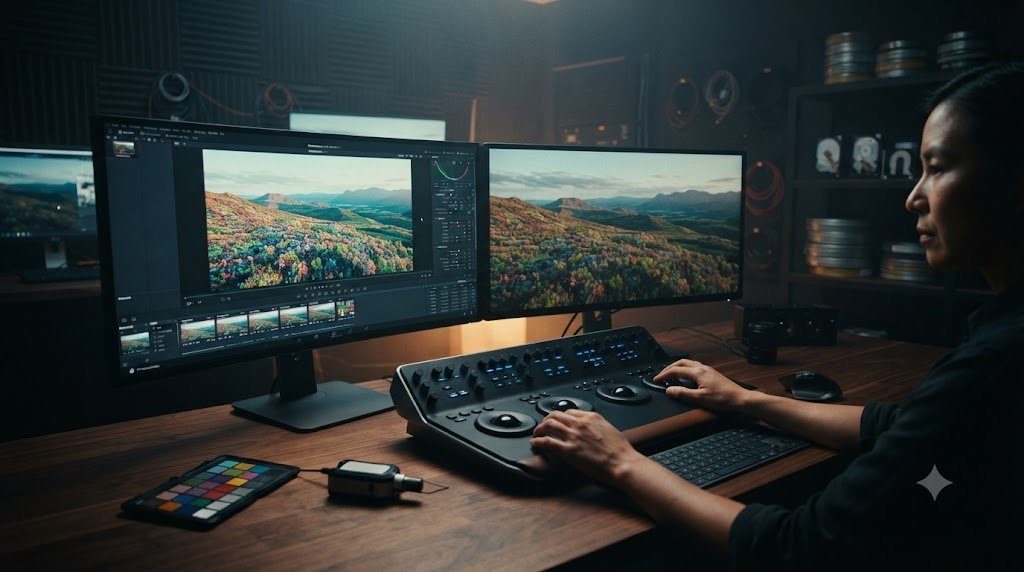
Even if your editing software operates in 16-bit Adobe RGB or ProPhoto RGB, how do you actually see those wide-gamut colors on your desk? Standard office monitors cover only ~95% of sRGB. Professional color-grading monitors (such as EIZO ColorEdge, BenQ PhotoVue SW, Asus ProArt, and Apple XDR displays) cover 99% of Adobe RGB and 98% of DCI-P3, utilizing a 14-bit or 16-bit internal 3D Lookup Table (3D-LUT) calibrated monthly with an external i1Display Pro / Calibrite ColorChecker hardware colorimeter (targeting D65 / 6500K white point and 80 to 120 cd/m^2 luminance for print matching).
The Ultimate End-to-End Color Management Pipeline
1. Capture: Shoot 14-Bit / 16-Bit RAW (camera set to Adobe RGB so the rear LCD histogram reflects a wider gamut).
2. RAW Processing (Lightroom / Camera Raw): Operates natively in 16-Bit Linear ProPhoto RGB.
3. Photoshop Retouching Round-Trip: Configure External Editing Preferences to 16-Bit TIFF, ProPhoto RGB (or Adobe RGB), ZIP Compression.
4. Web / Client Digital Delivery Export: Always check Convert to Profile: sRGB IEC61966-2.1 and Embed Color Profile at 8-Bit depth so every browser and phone renders your colors accurately!